STORYBOARD / ONE SHOT, THREE BEATSAI-generated concept image
Text to Video creates a clip from a written scene description. It is useful when you have an idea but no starting image. In FanPro, choose Text to Video, write your prompt and select the settings offered by the generation model.
AN ORIGINAL SCENE PLAN
Introduce it. Turn it. Let it settle.
This three-image storyboard plans one continuous streetwear scene. These are separately generated planning images, not frames from a finished video. For Text to Video, describe the complete scene in words; use Image to Video when this exact starting image matters.
01
Establish the scene.
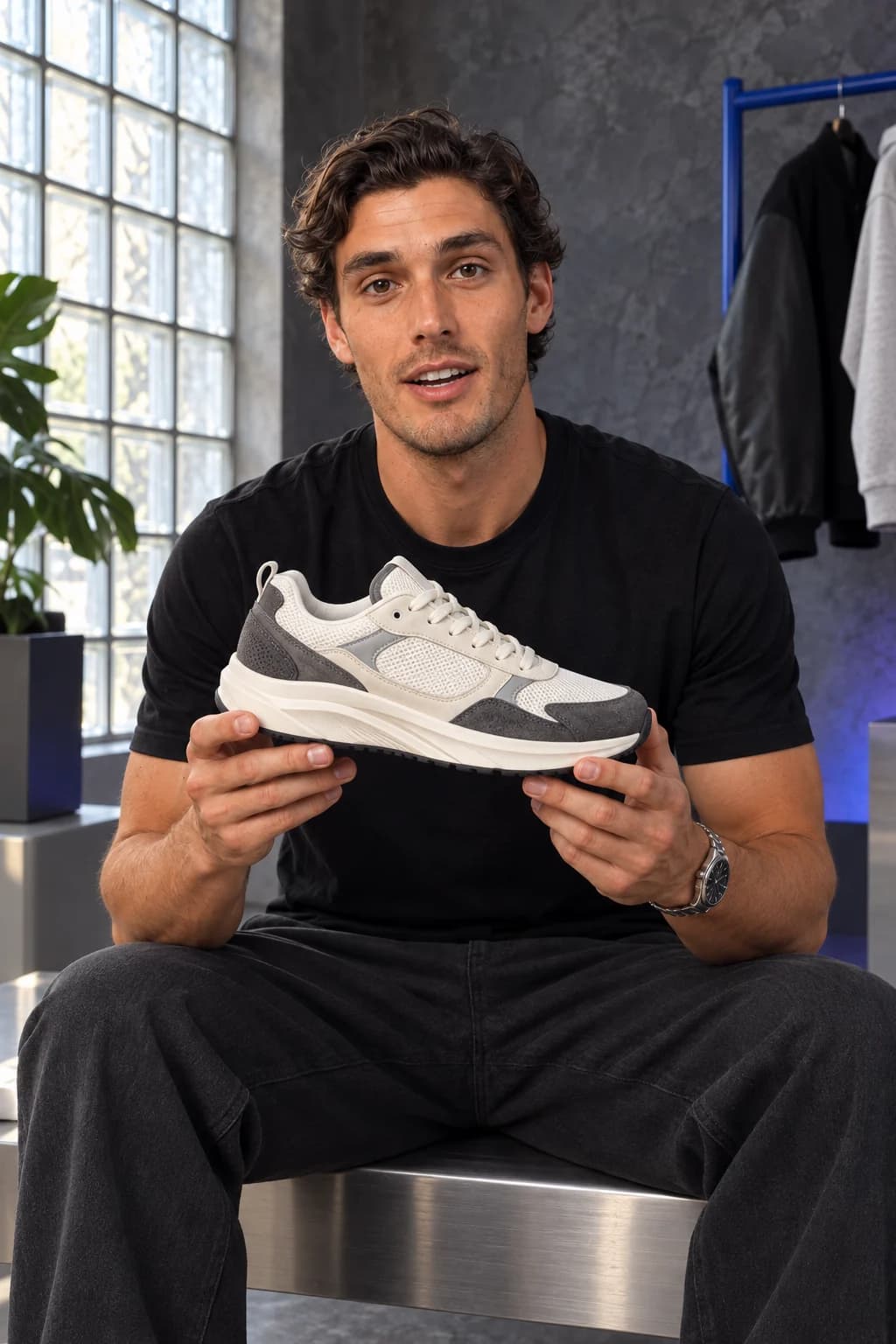
Introduce the subject, setting and object in one readable composition. The shoe is already in the frame so the shot can begin without a complicated reveal.
Read the creative direction
An adult male fashion influencer with dark textured hair and a fitted black tee sits on a metal bench in a glass-block-lit streetwear studio. He faces the camera, holding an unbranded ivory-and-graphite sneaker level in both hands at chest height. Natural daylight, medium portrait framing.
What to check: One subject, one product and a clear starting pose. Avoid adding unrelated props or scene changes.
02
Give the object one movement.
The gaze and small product turn give the middle beat a purpose. Keep the camera still so the action remains easy to follow.
Read the creative direction
He looks down at the sneaker and gently angles its toe toward the camera for a three-quarter detail. Both hands continue to support the shoe. The camera remains fixed; the window light, clothing and studio stay consistent.
What to check: Watch for fingers changing grip unexpectedly, extra laces or a shifting sole shape in the generated clip.
03
Finish on a steady hold.
A calm final moment gives the viewer time to see the product. It also creates a useful place to end the clip or add a separate caption in an editing workflow.
Read the creative direction
He returns his gaze to the viewer with a subtle smile and holds the sneaker level at upper chest height, side profile visible. End with both hands and the product still. One continuous shot, no cuts, no text overlays or new objects.
What to check: The final pose should be deliberate. Judge the actual video from beginning to end before choosing it.
Illustrative artwork created outside FanPro for these creative studies. Product props are fictional. The briefs are starting ideas; results in FanPro depend on your inputs and selected Model.
WATCH THE EXAMPLES
When the starting image matters.
The scene above can be described in words. For this finished sneaker review, the production used image references to establish the influencer and product.
0:27
One review. Every angle.
A scripted AI fashion influencer reviews a sneaker in two joined parts, moving from a charcoal studio to a plum setting for the second part.
Read the transcript
Right, let's actually look at this one. Ivory mesh through the upper, grey suede on the panels. You can see exactly where they meet. Cream sole, pretty chunky, and the stitching's clean the whole way around. Shape's the real thing, though. Look at that side profile. One more thing on this one, the panels aren't just stitched flat, they're layered. See that shadow line running through, that's where the depth comes from. Anyway, that's the shoe.
This is an image-guided comparison, not a prompt-only Text to Video result. The three planning images above were generated separately; they are not frames extracted from this clip.
AI-generated creative examples. The newly supplied clips use image references and scripted dialogue; they were produced outside FanPro.
FROM IDEA TO FIRST RESULT
Write for one continuous shot.
01
Set the scene
Name the subject, clothing, location and framing. For a grooming introduction, describe an adult male influencer in an overshirt beside a bathroom counter with a closed jar in hand.
02
Direct the action
Give the subject one manageable movement, such as turning the jar toward the camera. Add one camera direction. Several unrelated actions or scene changes make the result harder to assess.
03
Generate and review the whole clip
Select Text to Video in the studio and use the available model settings. Watch from first frame to last for unexpected objects, changing hands, identity drift and audio that does not match the intended scene.
Shape your creative brief
Plan the beginning, movement and final beat.
This is a planning tool. Copy your brief into the studio, add the required inputs and choose the available settings there. No generation or automatic transfer happens here.
WHAT TO LOOK FOR
Choose text when the idea comes first.
No starting image
Text to Video lets you explore a new scene from its description. Expect the model to interpret appearance and composition from the prompt.
A specific influencer or product
If a particular face, wardrobe or product placement matters, prepare an image and use Image to Video instead. Review fidelity in either workflow.
A movement to adapt
If the brief depends on a movement shown in an existing clip, consider Trend Replicate with a permitted motion reference and an appearance image.
THE DETAILS, EXPLAINED
The details, explained.
Text to Video starts from a written description. If you want a particular image to guide the opening frame, use Image to Video.
The planner writes a brief for one scene. It does not assemble a film, add cuts or generate separate clips for each beat.
Available settings depend on the selected model and workflow. Check the controls in the studio before generating; this page does not promise one duration, resolution or audio capability for every model.
You can describe recurring identity cues, but a prompt alone does not guarantee the same appearance across clips. A prepared reference image gives you a clearer identity reference to compare against.