FANPRO / IMAGE TO VIDEO

Keep the character. Direct what happens next.

Turn a still image into a moving creator scene. Start with your finished character image, describe the action and camera movement, and refine the result in FanPro Studio.

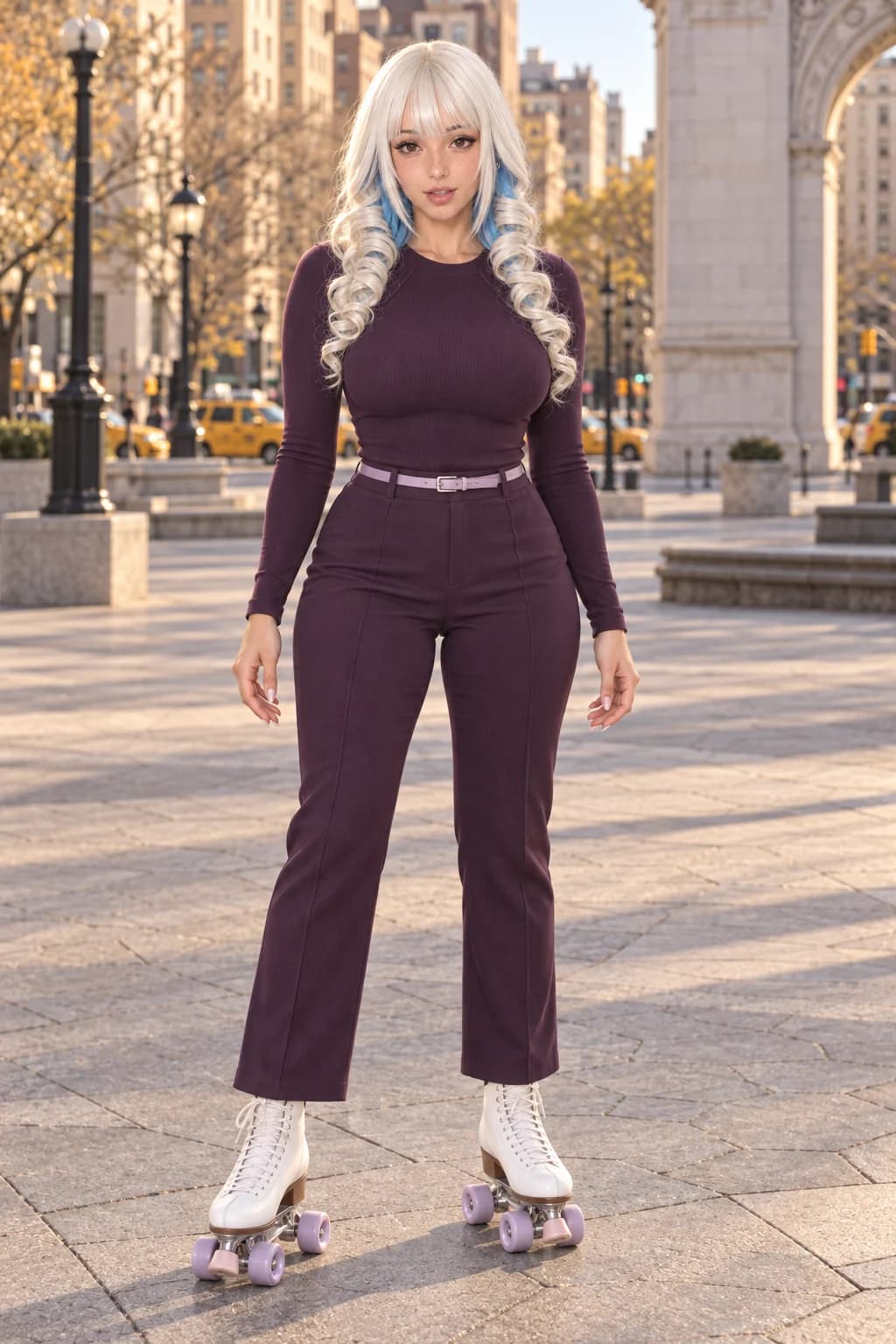
Platinum-haired adult AI influencer in a plum outfit standing on white roller skates in a city plaza
FIRST FRAME / ROOM TO MOVEAI-generated concept image

Image-to-video uses a supplied still as the visual starting point for a generated clip. Your image sets the opening composition; the prompt directs what changes. Identity and small details can drift, so review the full result before using it.

START WITH THE ACTION IN MIND

A strong first frame leaves room for the next.

These two starting-image studies solve different problems: a wider frame for body movement and a closer frame for careful product handling. The starting images are followed by supplied video examples, so you can compare the framing with the movement.

Full-body AI fashion influencer on roller skates, with hands and wheels visible
01

Space for a gentle glide.

The full-body composition makes the feet, hands and surrounding space available for the motion brief. Begin with a small weight shift before trying an elaborate routine.

Read the creative direction

Use the supplied image as the first frame. The influencer gently shifts her weight and glides a short distance to her right, then settles into a balanced stance. Keep all skates and hands in view. Fixed eye-level camera, one continuous shot, stable clothing and city background. No spins, jumps or cuts.

What to check: Wheels touching the ground, knees moving consistently with the glide, and the face remaining recognisable.
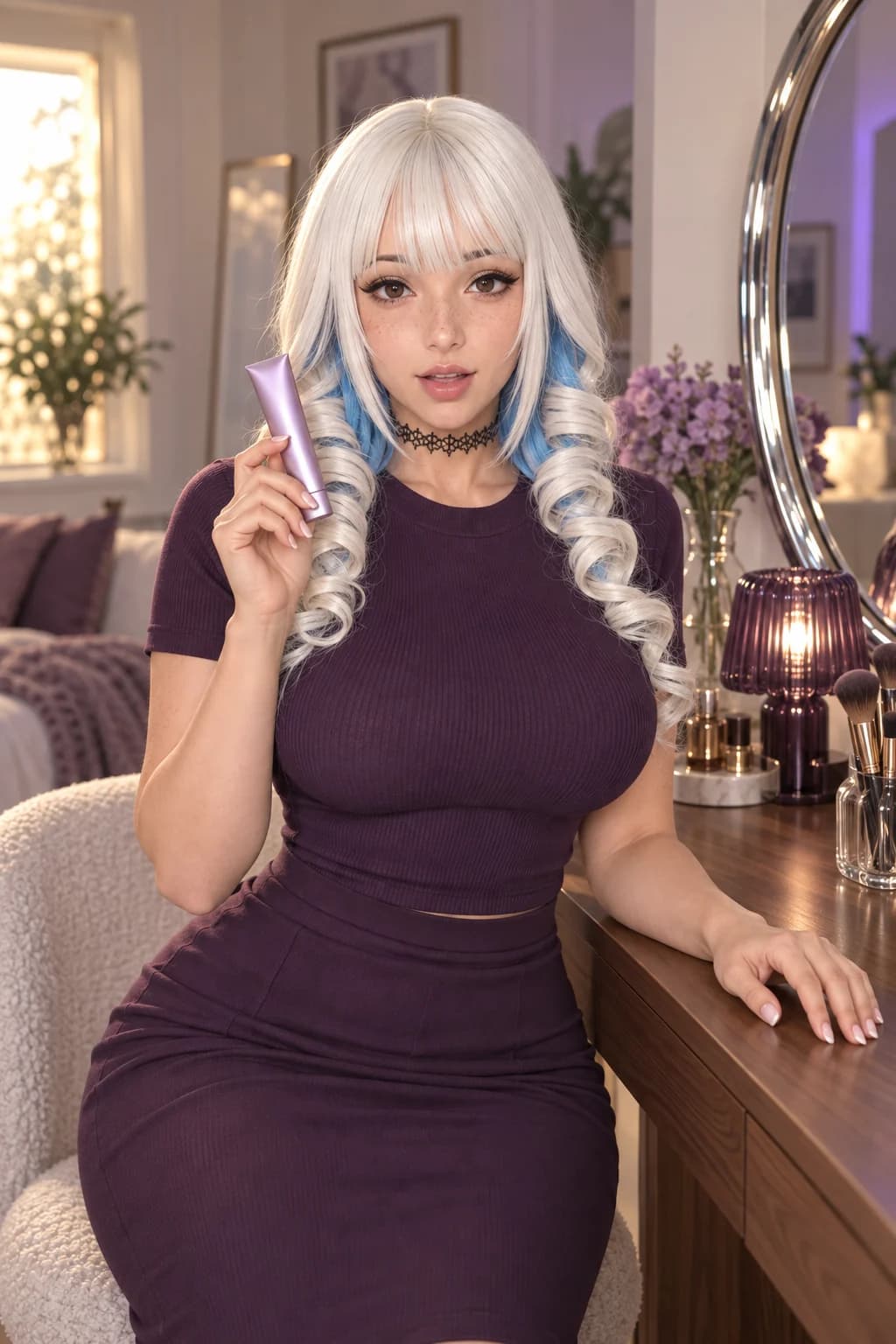
AI beauty influencer holding a lilac cosmetic tube ready for a restrained product movement
02

One small product movement.

The closed product and settled pose give the clip a simple starting point. A small change in distance is easier to evaluate than opening, applying and replacing the product in one take.

Read the creative direction

Begin from this image. The influencer holds the tube beside her face, tilts it gently to catch the light, and returns it to the opening position. Keep the tube closed and the free hand resting on the vanity. One restrained movement; no change of camera angle.

What to check: The tube silhouette and grip throughout the turn. If either changes, reduce the movement and compare another attempt with the source.

Illustrative artwork created outside FanPro for these creative studies. Product props are fictional. The briefs are starting ideas; results in FanPro depend on your inputs and selected Model.

WATCH THE EXAMPLES

The first frame becomes a performance.

Compare the supplied skating and beauty videos with the starting-image studies above. Speech, product handling and movement give each scene a different rhythm.

0:15

An outfit made to move.

A scripted AI influencer in plum clothing skates across a sunlit plaza, speaking about the outfit as she moves.

Read the transcript

Okay, so plum on plum, but these are the stretch trousers, which is the only reason this works. Watch. Yeah, they actually move. If I can't skate in it, I don't buy it. Mostly.

0:15

A lilac first look.

A scripted AI beauty influencer presents a lilac cosmetic tube and comments on its colour and finish.

Read the transcript

So, this shade, it's a soft lilac, kind of a muted one, satin finish. Subtle, right?

These supplied examples follow the image-guided production brief; exact generation settings were not supplied.

AI-generated creative examples. The newly supplied clips use image references and scripted dialogue; they were produced outside FanPro.

THE WORKFLOW

One still. A deliberate next frame.

01

Choose a usable starting image

Use a clear image you own or have permission to use. Check the face, hands, clothing and any product. Leave space around the subject for the movement you want.

Prepare a starting image
02

Open Image to Video

Choose the Image to Video tab in FanPro’s video studio and add the image. Select a generation model and check the settings it actually offers, including duration and aspect ratio.

Open Image to Video
03

Describe motion, not a new scene

Use the image for identity, wardrobe and setting. Write what moves, how the camera behaves and where the shot ends. Avoid introducing a new outfit or location unless you intend that change.

Plan a motion prompt
04

Inspect and refine

Review the first frame, the movement and the final frame. If detail drifts, simplify the action or lock the camera. Change one instruction at a time so the next result is easier to judge.

Troubleshoot your clip

CHOOSE YOUR DIRECTION

Plan your first shot

An original planning example. Copy it into the studio and adapt it to your starting image. This planner does not generate a video or transfer settings.

CHOOSE THE RIGHT START

Choose the input that matches the shot.

Image to Video

Use when a particular character, outfit or composition already exists. The still anchors the opening; the prompt directs movement.

Text to Video

Use when the scene starts as an idea and you do not need a supplied opening image. This is a separate live tab in the video studio.

Trend Replicate

Use when a permitted motion reference leads the idea. Check the current source requirements in that workflow; it is different from animating a single still.

REFINE THE NEXT TAKE

Read the result. Change one thing.

The face or outfit drifts
Reduce the action, avoid a large camera orbit and begin with a clear image. Check both the opening and closing frames against the source.
Hands or product details distort
Make the object easier to see in the still. Use a small gesture and a steady camera. Reject results that change important product details.
The camera moves too much
Specify a locked camera and one subject action. Reintroduce a slow push only after the simpler shot works.
The clip tries to do too much
Split the sequence into individual shots with clear end poses. A turn, product lift and scene change may need separate generations and editing.

THE DETAILS, EXPLAINED

Your questions, answered.

The workflow starts from an uploaded image. Choose a clear, permitted source that meets the selected mode’s input requirements. Portraits, illustrated characters and product scenes need different motion briefs.

Keep creating

Keep the character. Direct what happens next.

Open Image to VideoFANPRO / AI UGC GENERATOR