
A realistic AI UGC video starts with a clear creative brief: who is speaking, what they are showing and how the moment should feel. FanPro Studio Marketing brings the references and direction into one workflow, so you can turn that brief into a video featuring your AI influencer.
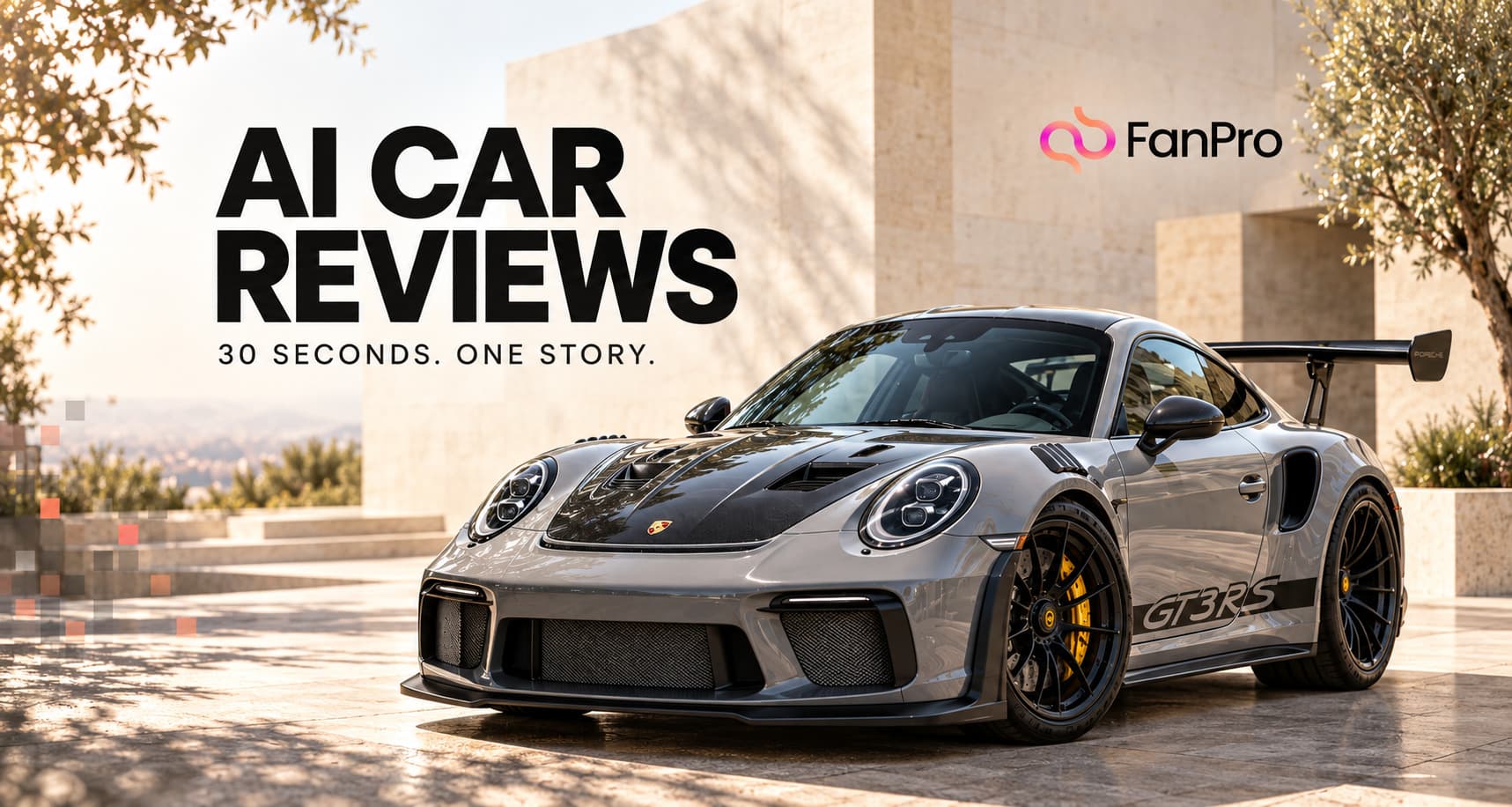
This guide walks through a 30-second Porsche GT3 RS example using Optimus, two reference images and a structured prompt. You’ll see where to click, how @img1 and @img2 are used, how the scene is timed, and what to check in the finished result.
Watch the 30-second Porsche UGC example
A convincing AI UGC video gives the viewer something to follow: a personality, a product and a small change of mind. In this example, Stacey begins in the driver’s seat of a Porsche GT3 RS, delivers a deliberately sarcastic review, then steps outside for the reveal. The humor comes from her reactions and delivery; the car gives the scene a visual focus.
Porsche GT3 RS: a Studio Marketing AI UGC example
Read video description
A platinum-haired AI influencer in a navy dress speaks from the red bucket seat of a sports car. She gestures while discussing the interior, then appears outside beside the grey car, a white wall and plants. The scene moves from the cabin to an exterior close-up. The supplied script uses sarcastic dialogue, an off-screen cameraman and a playful ending. This is an AI-generated creative example.
The useful part of this workflow is how the brief connects its pieces. One reference supplies the influencer and interior. A second supplies the exterior of the car. The prompt tells FanPro what to take from each image, then gives the performance a beginning, a transition and an ending. You can adapt that structure to your own product and tone.
Prepare a clear character and product reference
Start with the scene you want to make. For this walkthrough, the idea is a casual, handheld car review with one visible influencer and a second voice behind the camera. Choosing that format first makes the references easier to select: you need an image that establishes the speaker and cabin, plus a view that explains the car’s exterior.
| Reference | What it provides | What the prompt leaves out |
|---|---|---|
| @img1 | Stacey’s face, platinum hair, navy dress and seated pose; the red interior; the white wall, plants and daylight. | Any extra people or camera equipment. |
| @img2 | The car’s exterior: body, hood, rear wing, wheels and color. | The parking lot, trees and other cars in that reference. |
Choose references with enough detail to recognize the features that matter. A clear view of the car’s wing and wheels gives you something specific to describe and later check. For the influencer, start from an image that already shows the hairstyle, outfit and pose you want. Each additional reference should answer a concrete question about the scene.
Open Marketing, choose UGC and add your images
- Open Marketing in the left navigation.
- Choose the UGC tab and select Optimus in the model selector shown in this walkthrough.
- In Media, choose Image and upload the character/interior reference and the exterior reference.
- Check the thumbnail labels before writing the prompt. Here, IMG1 is the influencer seated in the car and IMG2 is the car exterior.
The demonstrated setup uses the Media image references. The separate Product area is visible in the screenshots, but no product is added there for this run. Follow the inputs used in the example before experimenting with additional controls.
If you change the order of your uploads, check the tags again. @img1 and @img2 need to point to the intended images; their meaning comes from the references you attached.
Use reference tags to direct the scene
In the Prompt field, use FanPro’s reference tagging control to insert @img1 and @img2 where you describe what each image contributes. The screenshot shows these as image-linked tags. They help connect an instruction to the relevant uploaded reference.
The original prompt names its subjects with readable labels: <Stacey>, <Cameraman>, <Car> and <Street>. It then explains those labels once and reuses them throughout the scene. This makes a long brief easier to follow and edit.
- Character: specify the face, hair, clothing and number of visible people.
- Product: distinguish the interior from the exterior, then state that both belong to the same car.
- Setting: identify the wall, plants and lighting to retain, and exclude the background from the exterior reference.
- Camera: describe the viewpoint and movement, including whether the operator should appear.
Break the 30 seconds into five connected scenes
The full prompt gives each stage a time range, an action and an end state. That turns a general request for a funny car review into a sequence the generation can follow. The timing below is the intended direction in the source prompt; always compare it with the generated clip.
| Time | Action and delivery | Purpose |
|---|---|---|
| 0–5 seconds | A bored introduction with exaggerated air quotes. | Establish Stacey’s sarcastic personality immediately. |
| 5–12 seconds | A comic reaction to the bucket seats and a change to a sing-song voice. | Make the product interaction part of the performance. |
| 12–18 seconds | A vague comment about the dashboard, then an exchange with the off-screen cameraman. | Give the move outside a reason within the story. |
| 18–24 seconds | The camera follows the exit and the walk toward the rear wing. | Reveal the exterior using the second reference. |
| 24–30 seconds | A close, playful reaction beside the car. | Finish on a distinct character moment. |
Notice how the camera directions change with the action. The first three stages ask for a steady viewpoint at the open passenger door. The fourth asks for a handheld tracking shot. The final stage settles again. You can use the same idea for a product demonstration: establish the item, interact with it, reveal a useful detail, then end on a clear reaction.
Dialogue also needs room to breathe. If a result rushes a sentence or misses a beat, shorten the line or simplify the action in that stage. Timing instructions are a creative brief, so reviewing the actual performance is part of the process.
Set the output, then create your video
| Setting | Used in this example |
|---|---|
| Workspace and tab | Studio Marketing → UGC |
| Model | Optimus |
| Duration | 30s |
| Resolution | 1080p |
| Framing control | Auto; the prompt requests vertical 9:16 |
| Image references | Two, linked in the prompt with @img1 and @img2 |
| Audio direction | Natural voices and street ambience; no music |
Read the prompt once more with the thumbnails in view. Check that the tags point to the correct images, the duration matches the scene plan, and the character and car descriptions agree across all stages. Then choose Create.
The credit amount displayed beside Create belongs to that captured configuration. Check the current amount in your own workspace before running a generation. The final example supplied for this guide is a 1080 × 1920 vertical video, approximately 30 seconds long.
The original Porsche UGC prompt
This is the original prompt supplied with the walkthrough, separated into its named sections for easier reading. Use it to understand the structure, then replace Stacey, the car and the dialogue with your own creative direction. Insert the appropriate linked references in your FanPro Prompt field.
Review the result and refine one thing at a time
Watch the whole clip with sound. A strong opening is only part of a useful result: the later shots need to preserve the same influencer, car and setting. In this example, compare the interior at the start with the exterior reveal, and listen for the intended changes in delivery.
- Influencer consistency: does the face, hairstyle and navy dress remain recognizable throughout?
- Product consistency: do the interior and exterior read as the same car, with the intended bodywork, color and wing?
- Scene continuity: does the white wall and daylight remain coherent when the video moves outside?
- Performance: are the gestures, reactions, spoken lines and pauses easy to follow?
- Camera behavior: does the perspective support the action without an unwanted operator or device appearing?
When something misses the brief, edit the relevant instruction first. Keep the rest stable so you can see what the change affected. If the wrong background appears, tighten the reference exclusions. If the delivery feels rushed, reduce the dialogue in that stage. Save the version that best communicates your idea.
| If you notice… | Try this in the next brief |
|---|---|
| Background details copied from the wrong image | Name the exact product elements to keep and the background elements to exclude. |
| A different outfit or hairstyle between shots | State the fixed appearance once, then repeat that it must remain unchanged across stages. |
| Too many actions in one scene | Give that stage one primary action and a simple end state. |
| A polished studio look instead of casual UGC | Describe daylight, handheld movement and natural texture; remove conflicting studio-lighting directions. |
| An awkward transition from inside to outside | Explain how the camera moves and where the influencer should be at the end of the transition. |
Make the workflow your own
The Porsche is the subject of this example, but the method is useful across product-led AI UGC: anchor the influencer, define the product, direct a short performance and review the result. For a different campaign, change the brief’s tone and the features the influencer interacts with while keeping that structure.
A calm demonstration might spend more time showing a product detail. A conversational review might center on one question and one answer. A humorous concept can use an unexpected reaction, as this one does. Decide which approach suits your audience before adding more scenes or references.
Build your AI influencer’s visual identity
Prepare a consistent character before planning a product video.
Turn a still image into a video
Explore a workflow that begins with a single selected image.
Use a motion reference with Trend Replicate
See how a reference video can guide the movement in a new result.