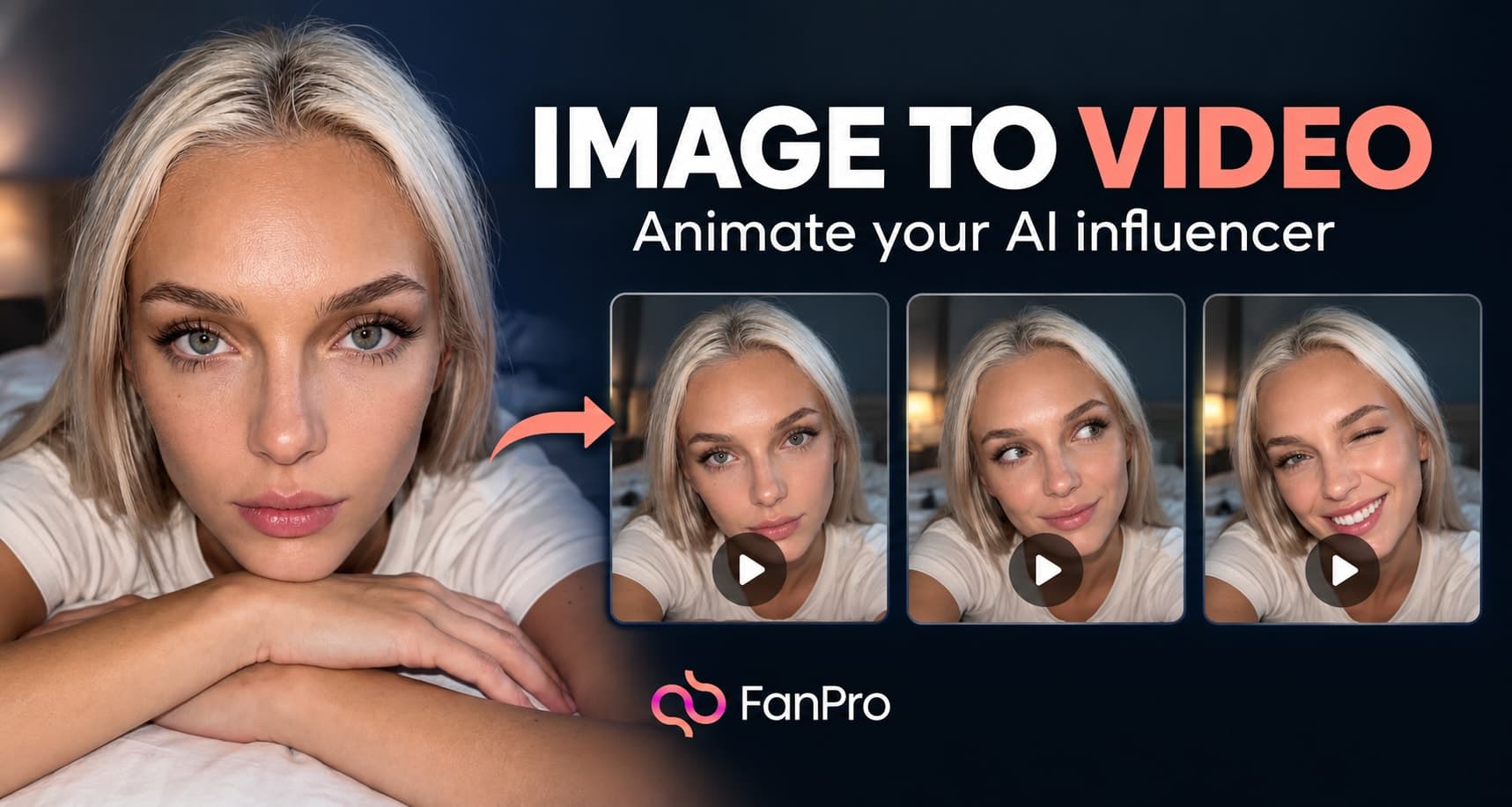

Image to Video starts from a still frame and adds motion. Choose an image you already like, then describe what should move, how the camera should behave, and what should remain stable.
A focused motion brief is easier to review than a sequence of unrelated actions. This walkthrough uses a single adult subject and one continuous shot.
Step 1: Choose a source that can support motion
Start with a clear, reviewed image. Check the face, hands, clothing, and objects before animating it. Leave space in the composition for the movement you want; a tightly cropped face cannot show a full-body walk without the scene changing substantially.
Step 2: Add the image in Videos
Open Videos and choose Image to Video. Add your source under Image to Animate. If you are working with a recurring character, check Select Influencer and confirm that the intended model is selected.
Check the generation mode shown at the top. Available settings can vary by mode; use the controls in the current workspace rather than assuming every mode offers the same duration, ratio, or audio options.
Step 3: Describe one continuous action
In Prompt, describe the subject’s action, the camera movement, and the environmental motion separately. Make those instructions compatible with the source image.
Avoid asking a short clip to move through several locations or a long chain of actions. If a complex idea matters, break it into separate shots that can each be reviewed.
Step 4: Review output and audio settings
Review the aspect ratio, duration, and output count near Generate. The freeform design shows a 16:9 ratio and a 5s duration as selected examples; these are not universal requirements for every clip.
The Audio picker includes Upload, Assets, and browsing categories such as Mood, Genre, Use Cases, and Effects. If you add audio, choose something appropriate to the shot and use Apply. Only use media you are entitled to include.
Step 5: Generate and watch the whole clip
Choose Generate after reviewing the inputs. Watch the output from beginning to end, then inspect the first and last frames. Pay attention to whether the face, clothing, and objects remain consistent while moving.
- Does the action match the prompt?
- Does the camera move as intended?
- Do hands, eyes, and accessories stay plausible?
- Does the background remain stable where it should?
- Does the ending work as a usable stopping point?
Use a narrower motion prompt if the clip changes more than intended. The result actions include Regenerate and Reuse Settings, so you can make a controlled comparison rather than reconstructing the whole setup. Download the version you have reviewed.
When another video tool fits better
Use Trend Replicate when the movement in a reference clip is the main input. Use Frame to Frame when the transition should be guided by a start and an end image. These tools express different kinds of direction.