
Your finished image or video should be the start of a publishing workflow, not another file to move between tools. FanPro lets you connect your AI influencer’s accounts, prepare posts and organize their publishing schedule from the same platform where you create the content.
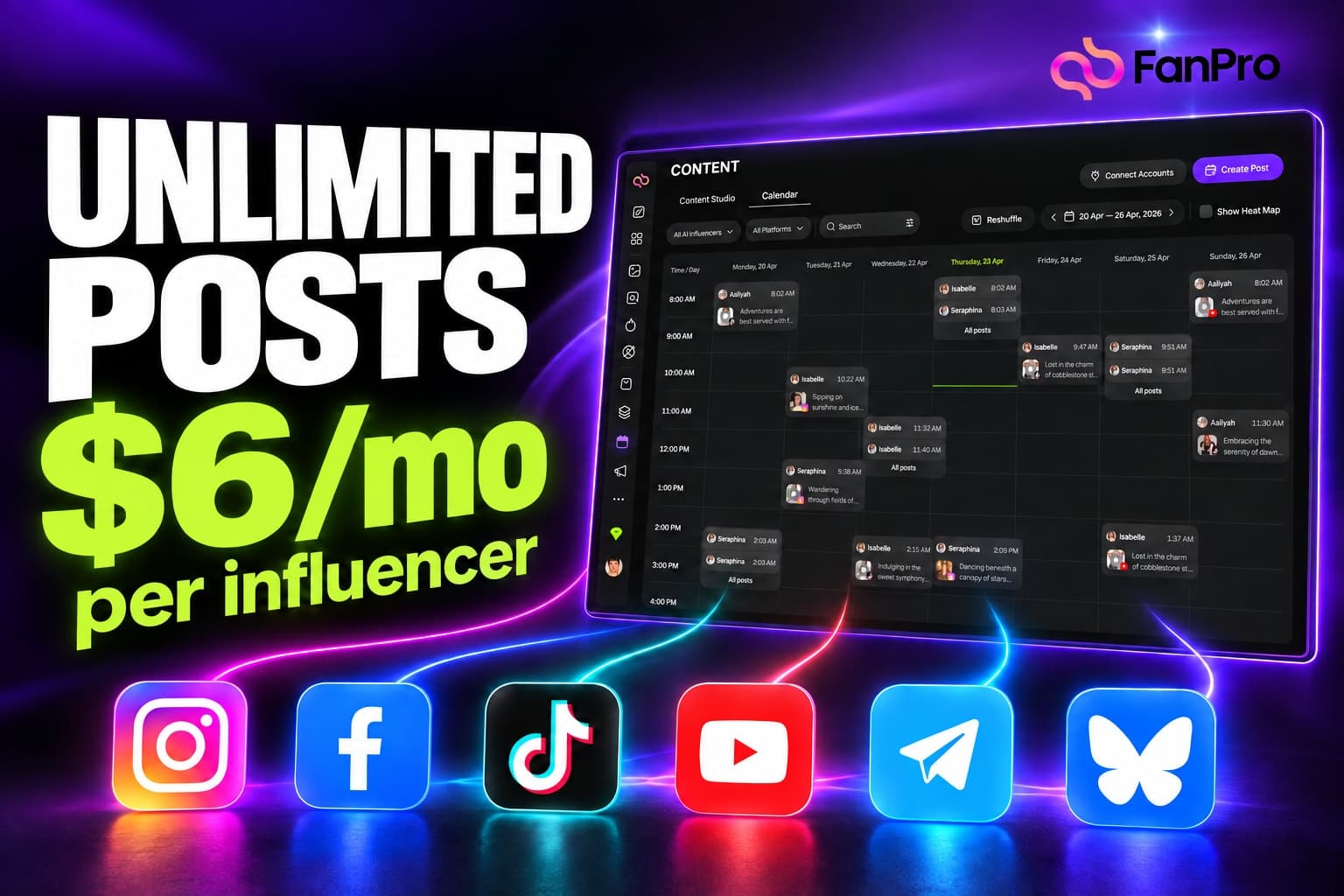
Publishing is $6 per month for each influencer you enable, with unlimited posts included. This walkthrough explains the account connections, Create Post and the content calendar, with a practical plan for turning one creative idea into several posts.
What $6 per month means for your influencers
The publishing price is per influencer. An influencer can have their own connected destinations, so you can keep separate identities and their accounts organized as you add to your roster. Connecting another platform for that influencer is different from adding another influencer.
| Influencers enabled | Monthly publishing cost |
|---|---|
| 1 | $6 |
| 2 | $12 |
| 3 | $18 |
| 5 | $30 |
These examples describe the publishing charge. They do not calculate generation credits or other subscription costs. Check the total shown in your account when enabling the feature.
Connect the platforms your influencer uses
Keep each influencer’s destinations together. Choose the accounts you actually publish to rather than connecting every network before you have a content plan. The available post formats and account requirements differ between platforms.
| Platform | Availability |
|---|---|
 Instagram Instagram | Live |
 Facebook Facebook | Live |
 TikTok TikTok | Live |
 X X | Existing accounts; new connections to be confirmed |
 Telegram Telegram | Live |
 Threads Threads | Live |
 Pinterest Pinterest | Live |
 Bluesky Bluesky | Live |
 Discord Discord | Live |
 Reddit Reddit | Live |
 LinkedIn LinkedIn | Live |
 YouTube YouTube | Live |
| Slack | Coming soon |
The designs below illustrate the workflow and may show fewer platforms than the current connector list. Slack is a coming-soon connector; it is not included as a live destination in this guide.
Open Content and connect the right accounts
- Open Content from the side navigation and go to Calendar.
- Choose Connect Accounts.
- Select the AI influencer whose accounts you want to manage.
- Choose a platform, follow its connection steps and grant the requested publishing permissions.
- Check that the correct account or destination appears under that influencer before preparing a post.
Pay attention to the account being authorized. A personal login may manage several Pages, channels or destinations, but your post still needs to go to the correct one. Repeat the process for the other platforms used by the same influencer.
| Destination | What to have ready |
|---|---|
| YouTube | A Google account with the channel you want to publish to. |
| Facebook | Access to the Facebook Page you want to manage. |
| Instagram | The appropriate account and permissions for the connection method shown; the Meta route uses a professional account linked to a Facebook Page. |
| Telegram | A channel you administer and permission to add the publishing bot. Follow the connection instructions and code step. |
| Bluesky | Your account handle and an app password for the connection flow. |
If a connection is missing or needs attention, resolve that before scheduling an important post. Returning to the account list is a useful way to confirm which destinations belong to which influencer.
Create a post around the finished asset
- Choose Create Post.
- Select the AI influencer and the connected platforms for this post.
- Choose the available post type for each destination, such as Post, Reel or Story.
- Add the finished media from your library or upload the files you want to publish.
- Write the caption and complete the options requested by each selected platform.
- Review the preview, then save a draft, schedule the post or publish now using the available action.
Start with the final asset, then write a caption that gives it context. A short bag reveal might need a simple opening line on one platform and a fuller product explanation on another. You can reuse the creative idea without forcing identical text or media settings onto every destination.
Platform previews help you assess the post, but they are approximate. Check the selected destination, media order, visible crop, caption and any required platform-specific fields. A format accepted for one destination may need a different version for another.
Use the calendar to review the whole schedule
The calendar lets you see when content is planned instead of managing each post in isolation. Filter by influencer or platform when the schedule becomes busy, use search to find a specific post, and move through the date range to review the next batch.
- Check the calendar timezone before choosing a publishing time.
- Open a scheduled item to review its details and destination.
- Leave enough space between posts that serve the same purpose.
- When a plan changes, adjust the scheduled item and confirm the updated time.
- After the scheduled time, check the publishing status rather than treating a place on the calendar as proof that every destination published.
For multiple influencers, work through one identity at a time first. Check the assets, voice and destinations for that influencer, then zoom out to the combined calendar. This keeps a shared schedule useful without blurring the differences between your accounts.
Plan a week from one Studio Marketing idea
| Moment | Asset | Purpose |
|---|---|---|
| Monday | A still image introducing the product or concept. | Give the audience a clear visual starting point. |
| Wednesday | A short UGC video showing the product in use. | Explain a detail through an action or reaction. |
| Friday | A second edit or a closer view of the most useful detail. | Answer a question raised by the first post. |
Use this as a content sequence, not a claim about universal best posting times. Choose the actual dates, times and destinations for your audience. The LV review, for example, can supply an introduction, a full reveal and a detail-focused variation, each with a caption written for its placement.
Before filling the calendar, check that each post has a distinct purpose. Three copies of the same asset are not automatically a stronger campaign. A small, well-reviewed batch is easier to learn from and maintain.
Common publishing questions
Create the next asset in Studio Marketing
The practical advantage is keeping the content and its publishing plan together. Build the image or video, review the result, choose where it belongs and schedule it for the appropriate influencer.