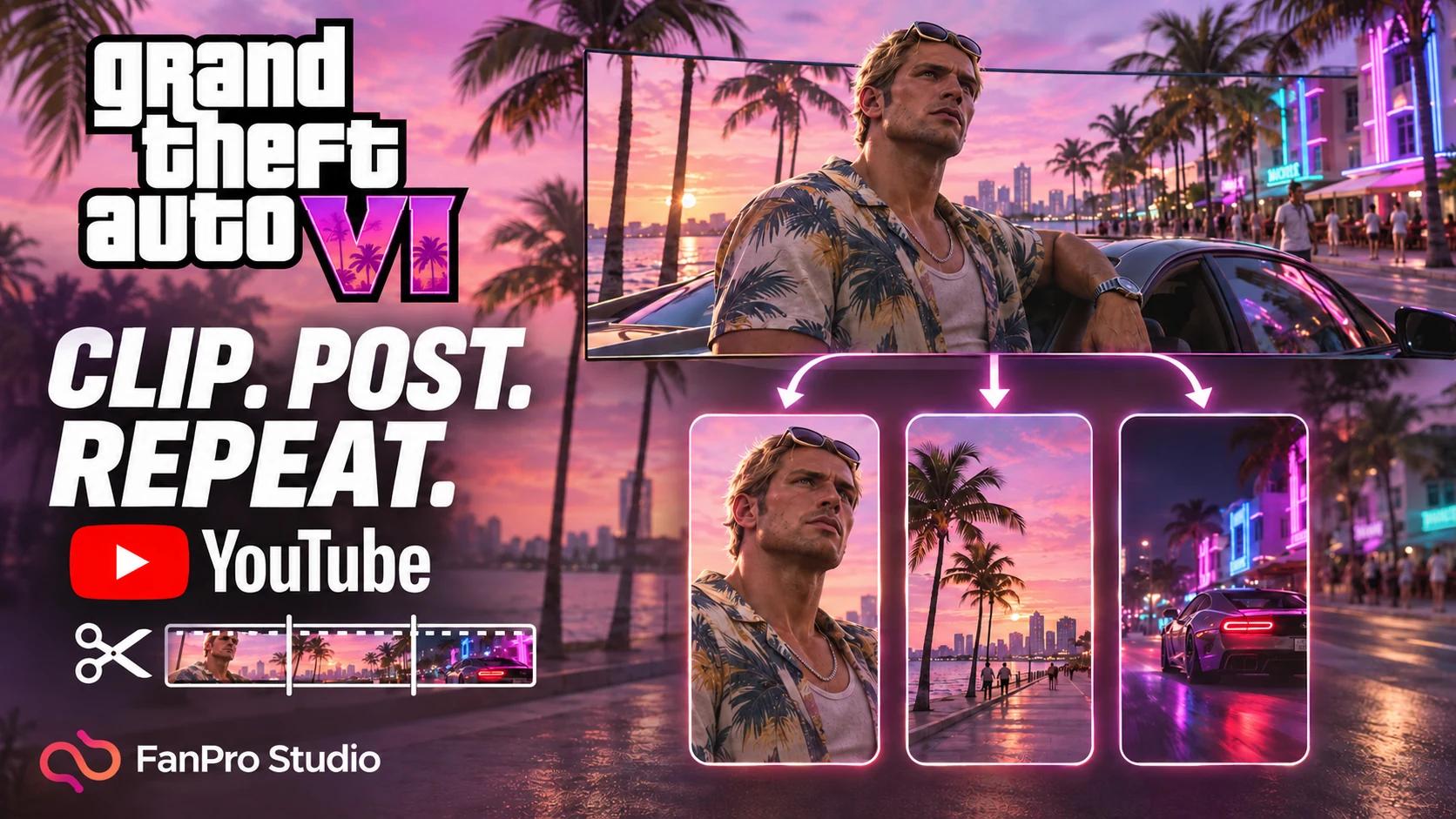

To make money clipping GTA 6 videos, start with footage you can use, turn its strongest moments into useful short videos, and build an audience or sell the editing service. FanPro Director handles the clipping workflow: paste a YouTube link, describe the batch, review the plan and approve the run.
A long video can contain several ideas worth sharing: a surprising detail, a comparison, a funny exchange or an explanation that deserves its own clip. Instead of finding and cutting every moment manually, you can ask Director to prepare a batch for review. This walkthrough shows the exact setup for a request to create 12 vertical clips.
The production process gets easier. Earnings still depend on the content, your audience, your rights to use the material and the monetization route you choose.
See what Director made
Here are four finished clips from the 12-clip batch shown in this guide. Press play to preview the vertical framing, captions and edits, then follow the steps below to make your own batch.
Clip 1
Clip 2
Clip 3
Clip 4
Where the money can come from
There are two useful ways to approach this: grow your own GTA-focused channel, or help another creator get more short videos from the content they already make. Pick a route before you make a large batch, so each clip has a purpose.
| Route | What you build | What has to happen |
|---|---|---|
| YouTube Shorts | Original, useful clips for a focused gaming channel | Your channel and videos must qualify for monetization; views alone do not activate payments. |
| Brand or affiliate work | A recognizable audience around GTA commentary, humour or analysis | A relevant commercial agreement and transparent disclosures; income depends on the arrangement and response. |
| Paid clipping service | Reviewed batches made from a creator’s own long videos | A client agreement covering source permission, deliverables, revisions and payment. |
Step 1: Switch from FanPro Studio to Director
Open FanPro Studio and use the Studio / Director switch beside the FanPro logo at the top left. Choose Director. This opens the conversational workspace where you can describe the clipping job in ordinary language.
Step 2: Start in the Director workspace
The welcome screen asks, “What are we shooting today?” The message box is at the bottom, with the Gallery on the right. Start a new chat for this batch so the source, plan and outputs stay together. You can describe your request directly in the message box.
Step 3: Find a GTA 6 topic people want to watch
Open YouTube in another tab and search for “gta 6”. Look for a focused subject that gives viewers a reason to stop scrolling: a comparison, an explained detail, a reaction or a question with an interesting answer. Use search to understand what audiences respond to, then choose a suitable source for your own batch.
Step 4: Choose your source and copy its link
Look for a video with several distinct points and enough context to make each clip understandable on its own. Clear speech, an obvious subject and a sequence of useful moments give you more to work with than a long intro or repeated filler. Open the chosen video and copy its YouTube URL.
That view count is a signal of interest in the subject, rather than a forecast for your own clips. The screenshot demonstrates the workflow; use your own or permission-cleared video for the batch you intend to publish.
Step 5: Paste the link and tell Director what to clip
Return to Director and paste the YouTube link into the message box. In this example, the source appears as an attached video chip. Add the request below and send it. This is the exact prompt used in the screenshots:
You choose how many clips you want and how long each should be: 5 seconds, 8 seconds, 12 seconds or another preferred length. Include the count and duration in your message, along with the format and what makes a good moment. The variation below is a suggested brief, rather than a second tested run:
Step 6: Check the plan, then approve the run
Director selects the Clipping skill automatically in this example, checks the source and presents a plan. Confirm the source title and the proposed output before you approve. The shown plan is for about 12 clips, in 9:16, with Bold Pop captions.
If you want a different batch, clarify your request before approving. Once the plan matches what you want to make, select Approve · run to start processing. The requested count is a plan, so check the completed results rather than assuming every requested clip succeeded.
Step 7: Let Director prepare the clips
The progress panel shows the job moving through fetching the video, transcribing, finding moments and rendering clips. You can follow the run in the chat and look for its output in Gallery. Let it finish before judging the batch.
Once processing finishes, review the completed results in Gallery. Check what actually rendered and choose the clips that are ready for your next editing or publishing step.
Before you post: make each clip worth watching
When your batch finishes, watch each completed clip. You are choosing what deserves to represent your channel or your client. A smaller set of clear, useful clips is a better starting point than posting everything simply because it rendered.
- Opening: does the first line make sense to someone who has not seen the full video?
- Context: does the edit preserve what the speaker meant and distinguish confirmed information from speculation?
- Framing and captions: is the subject visible, and are names, numbers and subtitles correct?
- Payoff: does the clip finish a thought instead of cutting off halfway through it?
- Your contribution: have you added a clear explanation, analysis, story or other original value where you are building on someone else’s material?
YouTube treats minimally changed reposts as reused content, and permission from a creator does not automatically make a channel eligible for monetization. Cropping and captions alone are not a reliable earning strategy. Read YouTube’s original and reused-content policy before planning your channel around clipped material.
For a client, agree which clips are approved and who will publish them. For your own channel, post the strongest relevant examples, compare how viewers respond, and use what you learn to choose the next source and angle.
Questions about clipping GTA 6 videos
Want to create your own cast and footage too? Explore FanPro’s AI influencer tools and the Influencer Builder guide for another starting point.