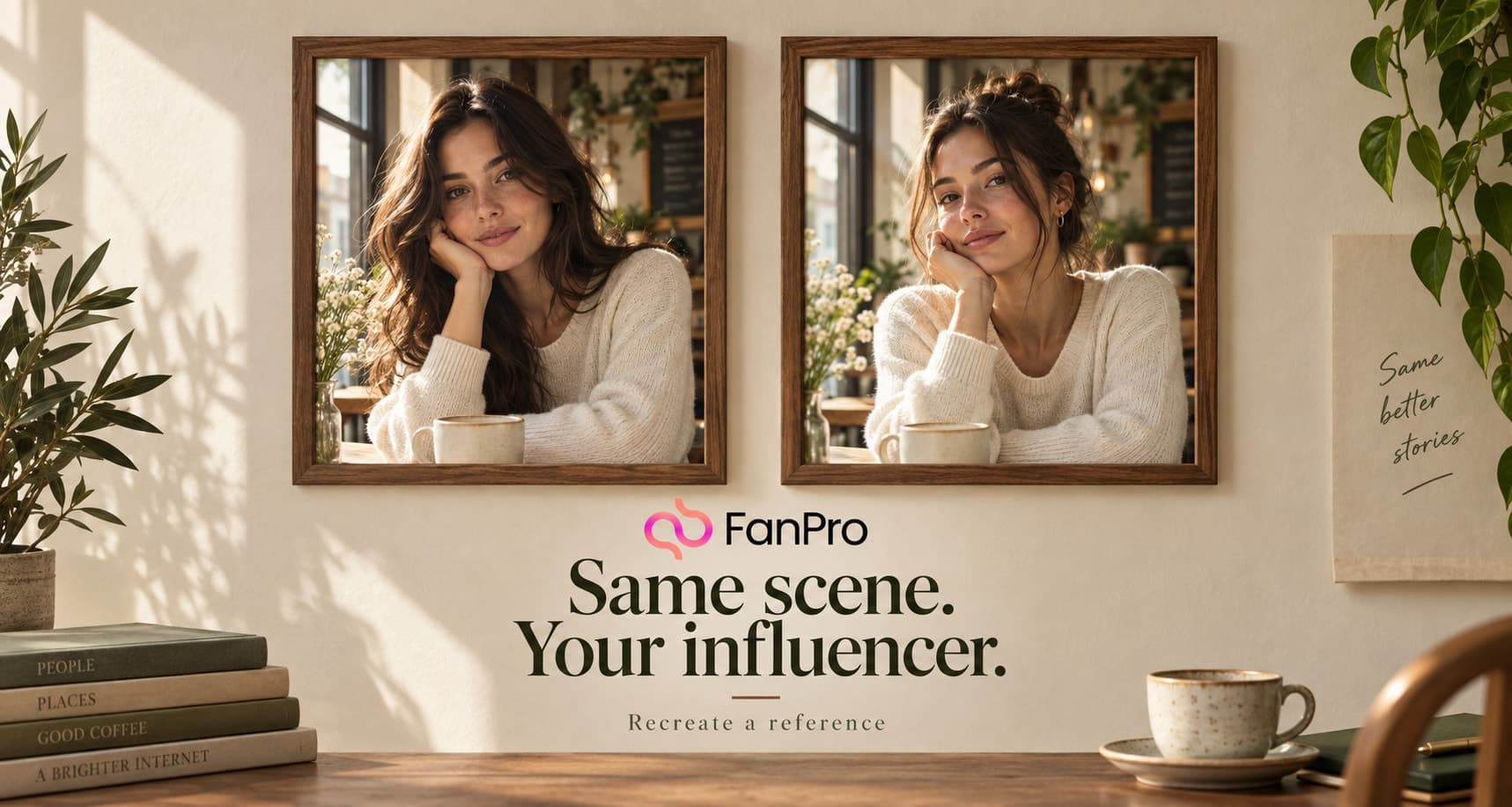

A useful reference tells you something specific about composition, styling, or motion. Start by identifying that element, then build a new brief around your own character and creative direction.
This walkthrough connects Inspiration with the image and video replication tools. It does not assume that every social link is supported or that a reference’s popularity will transfer to your result.
Step 1: Find a reference with a clear purpose
Open Inspiration and use Search, Filters, Favorites Only, and Sort by Relevance to narrow the collection. The Platform filter lists Instagram, TikTok, and YouTube. Post type separates images and videos.
Choose a post because it demonstrates something you want to learn from: a camera angle, an outfit composition, a lighting setup, or a movement. Engagement numbers can help with discovery, but they do not prove why the original performed well.
Step 2: Inspect the source before recreating it
Open View details. The details flow separates Source post and Similar posts, with options such as Best Match and More Recent. Look closely at the source and write down the element you intend to adapt.
Choose reference material you have permission to use. A publicly visible image is not, by itself, evidence that it can be reused in any context.
Step 3: Use Replicate Image for visual references
In Images, choose Replicate Image. Select an influencer or add a Character Image for the person who should appear. Add the scene or visual references under Reference Image. The interface supports up to four reference images in that area.
Use Prompt to explain which elements matter and how the references should work together. Multiple references are most useful when their roles are clear; conflicting compositions or clothing can make the request ambiguous.
Step 4: Use Trend Replicate for a motion reference
For a moving reference, open Videos and choose Trend Replicate. Set the intended character, then use Select Video to choose a file or link. The input displays its duration limit; check it before preparing the source.
Use the prompt for the motion details that need explanation. If you use Advanced Setting, review First Frame Image and Background Control Mode so the opening frame and background are intentional.
Step 5: Review what changed
- Identity: is the intended character present?
- Reference: did the result capture the composition or motion you selected?
- Originality: does the result follow your own brief?
- Detail: are faces, hands, clothing, and objects coherent?
- Readiness: is the final version suitable for its intended use?
Revise the brief if the wrong element dominates. Keep a note of the source’s role and the changes you made, so a later iteration does not turn into guesswork.